If you landed here because an app told you it needs permission to display over other apps, you are looking for the setting Android labels as Display over other apps, Draw over other apps, or Appear on top. That permission lets an app place small windows on top of whatever you are doing. Think chat heads, floating toolbox buttons, dimming overlays, on-screen schedulers, or accessibility helpers.
Android 16 will still treat this as a special permission. The exact menu names sometimes shift from version to version and from one manufacturer skin to another, but the path and logic stay similar. Below is a practical walkthrough that works on recent Android versions, what to try if you cannot find the toggle, and fixes for the common overlay detected error that blocks other permissions.
First, what overlay permission actually does
Overlay permission allows an app to draw a view over the current screen. It can be a bubble, a persistent button, a dim layer, or an edge panel. It is powerful because it sits on top of other apps, which is why Android keeps it behind a special switch. Most apps do not need it. The ones that do usually tell you at launch and send you to the right page.
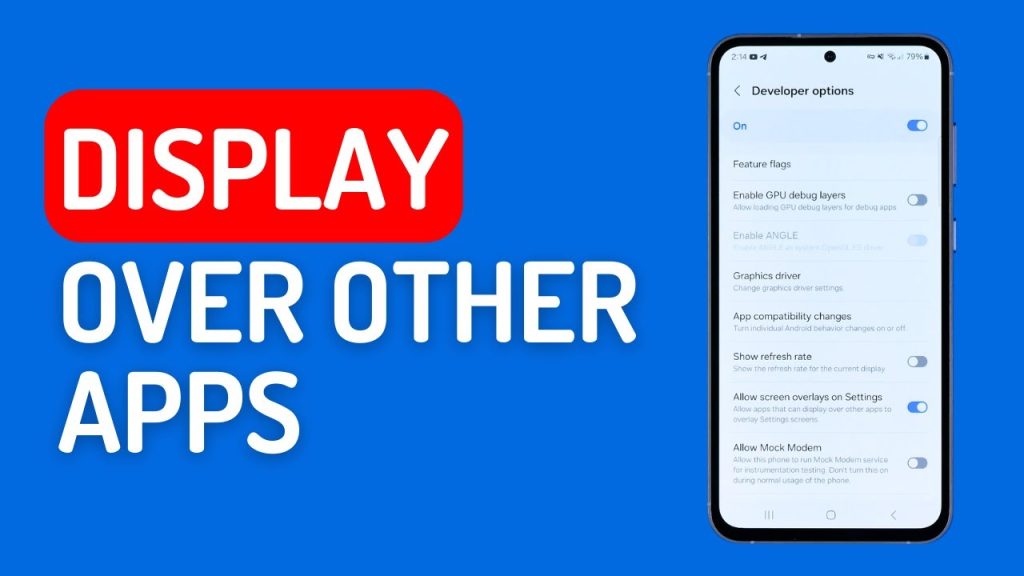
A few real world examples:
- Messaging bubbles that float on top of other apps.
- Screen dimmer or blue light filter overlays.
- Floating note widgets and screenshot markup tools.
- Accessibility helpers that place tappable targets for actions.
- Call or music controls that remain visible while you browse.
It is separate from two other features people sometimes confuse with overlays:
- Picture-in-picture is for video or video calls and is controlled by a different permission in App info. PIP does not require Draw over other apps.
- Notification bubbles are managed in Notifications settings. Some messaging apps used chat heads as overlays in the past, but modern Android uses bubbles instead. An app may still ask for overlay if it uses extra floating UI.
Quick ways to enable overlay permission on Android 16
Try the fastest path that applies to your situation. You do not have to follow all of these. One of them will likely get you there.
1) Use the in-app prompt
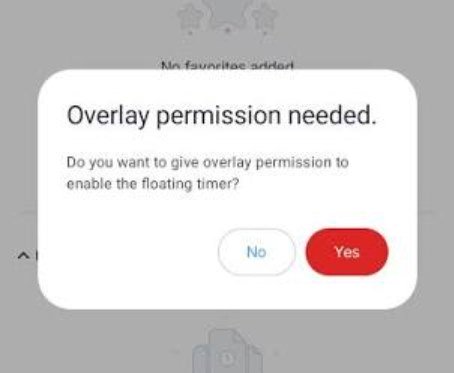
Most well behaved apps show a prompt the first time they need to float a window. Tap Open settings on that prompt. You should land on a page labeled Allow display over other apps or Appear on top for that specific app. Toggle it on.
If you see a system page that lists lots of apps, tap the app you were using, then enable the switch.
2) Find it through App info
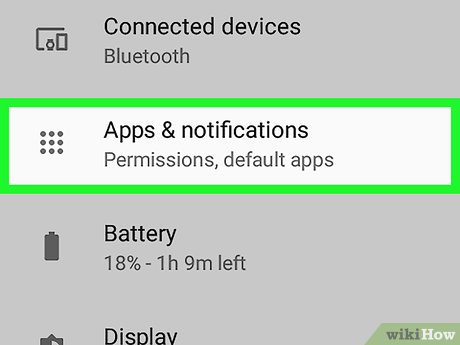
If you already installed the app, long press the app icon and tap App info. You can also find App info from Settings in Apps. Once you are on the App info screen, do one of the following depending on your device:
- Tap Advanced or More settings, then Special app access, then Display over other apps or Appear on top.
- Or look for a dedicated line labeled Appear on top or Display over other apps right inside App info and turn it on.
3) Use Settings search
Open Settings and use the search bar. Type overlay, appear on top, or draw over other apps. Android usually returns a direct link into Special app access. On some devices the result appears as Display over other apps. Tap it, choose the app, then enable the switch.
4) The general Settings path
If search does not help, follow this general route. Wording changes a bit by device, but this is the common flow on modern Android:
- Open Settings.
- Tap Apps.
- Tap Special app access. If you do not see it, tap the three dot menu or Advanced first.
- Tap Display over other apps or Appear on top.
- Find your app in the list, tap it, and turn on Allow display over other apps.
Brand-specific locations and names
Manufacturers like Samsung, Xiaomi, Oppo, OnePlus, and Huawei often move or rename this setting. Here is where it typically lives on popular devices. If your device does not match exactly, use Settings search.
Google Pixel and near-stock Android
Path on Pixels and most phones that stay close to stock Android:
- Settings
- Apps
- Special app access
- Display over other apps
- Select the app and toggle Allow display over other apps
Samsung Galaxy with One UI
Samsung’s naming varies between One UI versions, but it is usually labeled Appear on top.
- Settings
- Apps
- Tap the three dot menu in the top right
- Special access
- Appear on top
- Choose the app and enable Allow permission
OnePlus and recent Oppo or Realme phones
OxygenOS and ColorOS often keep the stock layout, but sometimes group permissions under App management.
- Settings
- Apps or App management
- Special app access
- Display over other apps
- Toggle the app on
On some Oppo or Realme builds you will also see Floating windows or Flexible windows. That is a separate feature that lets an app open as a resizable window. It does not replace the overlay permission. If your app needs both, enable both.
Xiaomi, Redmi, and Poco with MIUI or HyperOS
MIUI and HyperOS use a slightly different structure and names like Other permissions and Floating windows.
- Settings
- Apps
- Permissions
- Other permissions
- Select the app
- Enable Display pop-up windows and Display over other apps if shown
On newer HyperOS versions you might also see Floating windows in Settings. That is Xiaomi’s own windowing feature. Enable it if your app expects a movable window that behaves like a mini app. For true over-the-top bubbles or dim layers, you still need the Display over other apps toggle.
Huawei and Honor with EMUI or MagicOS
EMUI often mirrors stock Android naming but keeps its own menu order.
- Settings
- Apps
- Permissions
- Special access
- Display over other apps or Appear on top
- Turn it on for your app
Motorola, Nokia, Sony, and others
Most brands that stick close to stock Android follow the Pixel method. Go to Settings, Apps, Special app access, then Display over other apps.
If you cannot find the toggle on Android 16
Android 16 could move labels or shuffle menus slightly. If the paths above do not line up, try this checklist.
- Search Settings for overlay, appear on top, or display over. The search index usually points you to the right screen even if the path moved.
- Open the app, trigger the feature that floats a window, and wait for the in-app prompt that deep links into the setting.
- From App info, look for Special app access or Advanced. Some skins hide the toggle one level deeper under that label.
- Make sure you are in the right profile. Work profiles and child profiles can restrict overlays. Switch to your personal profile if your company policy blocks it.
- If your phone has a Guest mode, overlays might be disabled there. Switch back to the main user.
How to fix the “screen overlay detected” or blocking pop up problem
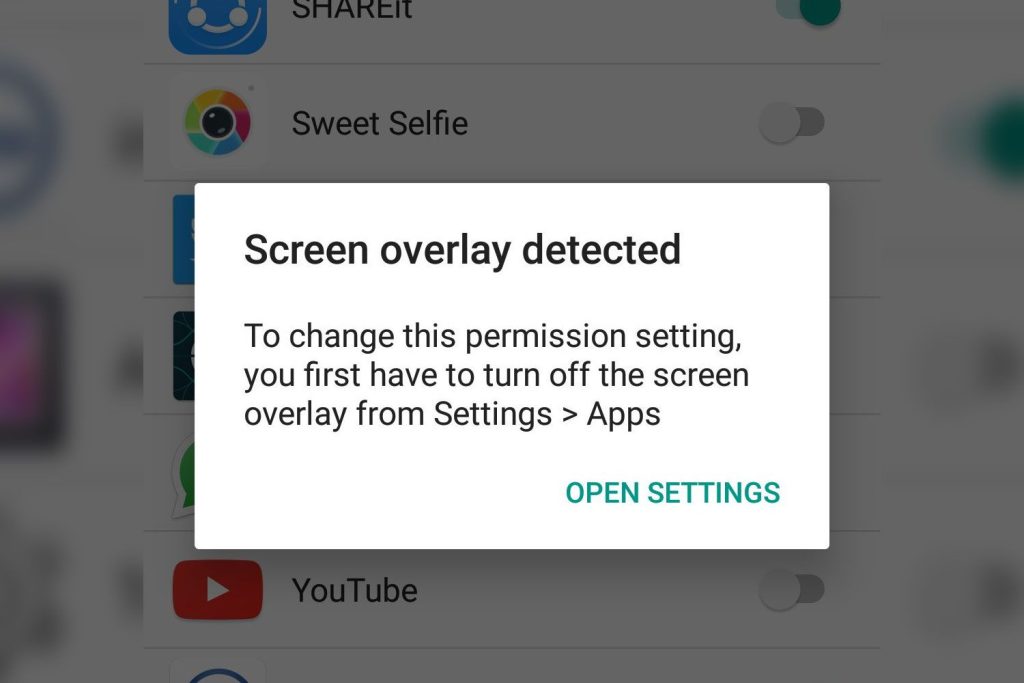
This is the most common frustration with overlays. Android blocks certain permission prompts if something is already drawing over the screen. You try to grant camera or contacts access and the Allow button does not respond, or a toast says Screen overlay detected.
Here is the fix:
- Identify any app that currently shows a floating element. Common culprits are chat heads, button floaters, screen dimmer apps, and quick tool bubbles.
- Disable or hide that overlay. Close chat bubbles, turn off the dimmer, or temporarily toggle off Allow display over other apps for that app in Settings.
- Return to the app that requested the permission and try again. You should be able to tap Allow now.
- Re-enable the overlay you turned off if you still want it.
Some secure screens like password dialogs and payment confirmation screens always block touches through overlays. That is by design. You will not be able to interact with a floating element on those screens even if the permission is on.
Why an overlay still does not appear after you enable the setting
Turning on the permission is not the only requirement. A few other switches and guardrails can get in the way.
- Battery optimization can pause or kill the app in the background. If your overlay disappears, allow the app to run without battery restrictions. Go to App info, Battery, and set it to Unrestricted or Do not optimize. Wording varies.
- Autostart or Start in background controls on some brands like Xiaomi, Oppo, or Huawei can block overlays from reviving after you lock the phone. Allow autostart in the phone’s app management settings.
- Notification permission is often required because many overlay tools anchor to a persistent notification so the system keeps them alive. Make sure the app’s notifications are allowed.
- Secure or sensitive apps might hide overlays on top of their content. Many banking and payment apps disable third party overlays while they are open. That is normal.
- Accessibility services can create overlays as part of their function. If your app instructs you to enable its Accessibility service, follow those steps in Settings under Accessibility. That permission is separate from Display over other apps and may be required for some assistive overlays.
- Work profile restrictions apply if your app is installed inside a managed profile. Your company’s device policy might block overlays completely. You will need IT to change the policy.
How to revoke overlay permission later
If you granted the permission and changed your mind, revoking it is as simple as finding the same switch and turning it off. Here is the quick route:
- Open Settings.
- Tap Apps.
- Tap Special app access.
- Tap Display over other apps or Appear on top.
- Open the app and toggle Allow display over other apps off.
You can also long press the overlay bubble itself if the app supports a quick disable, or open the app’s own settings and look for Turn off floating window.
Security and privacy notes worth knowing
Android treats overlays cautiously for good reason. A malicious overlay could trick you into tapping a button that does something sensitive, a tactic often called tapjacking. Modern Android versions add safeguards, which is why you sometimes see taps blocked while a permission dialog is open.
- Only allow overlays for apps you trust. If a flashlight app asks for it, think twice.
- Grant it when you understand what the floating element is for. Good apps show a preview or explain the use.
- Revoke it for apps you do not use anymore. There is no reason to keep extra overlays active in the background.
- Watch for persistent notifications from overlay apps. That is normal. It signals that the app is active on top.
On some devices you may see a small indicator or a status bar icon when an overlay is present. Not all skins show this, but a constant notification from the app that is overlaying is standard behavior.
Troubleshooting quick answers
These are the issues that come up often and what usually solves them.
The toggle is grayed out
Reasonable causes include a work profile policy from your employer, a parental control app, or a device admin policy. If you see a message about your organization or administrator, you will not be able to change it without that admin lifting the block.
The app does not appear in the list
Some lists only show apps that requested the permission at least once. Open the app, trigger the feature that needs the overlay, then go back to Special app access. If it still does not appear, the app may not support overlays on your Android version.
Buttons are not clickable when the overlay is on
Secure screens and sensitive dialogs block touches when an overlay is present. Temporarily hide the overlay, complete the action, then bring it back.
My screen dimmer or blue light filter keeps getting disabled
Apps that alter screen colors or brightness through an overlay often get disabled on lock screen, on the camera viewfinder, or during installations to prevent color distortion and security issues. There is not much to do except acknowledge it and let the app resume afterward.
After enabling, the overlay shows but disappears after a few minutes
Turn off battery optimization for the app and allow background activity. On brands with aggressive task killers, also enable autostart.
My app says it needs bubbles, not overlays
Open Settings, go to Notifications, and enable Bubbles. Then open the app’s notification channel for messages and allow bubbles there. That is different from Display over other apps.
Step-by-step recap you can follow without second guessing
If you just want a reliable set of actions to run through on any modern Android phone, use this checklist. It captures all the common routes and the likely roadblocks.
- Open the app that needs to float over other apps. If it shows a prompt, tap Open settings and enable the toggle there.
- If there is no prompt, long press the app icon, tap App info, and look for Appear on top or Display over other apps. Turn it on if the switch is present.
- If you cannot find the switch in App info, go to Settings, Apps, Special app access, then Display over other apps or Appear on top. Select the app and turn it on.
- If your phone is by Samsung, look under Settings, Apps, Special access, Appear on top. If it is a Xiaomi or Poco, go to Settings, Apps, Permissions, Other permissions, pick the app, and allow Display pop-up windows and Display over other apps. For Oppo or Realme, check App management, Special app access, then Display over other apps.
- Try the feature. If the overlay appears and then vanishes, allow the app to run without battery optimization and enable autostart if your phone has that setting.
- If you are stuck on a permission dialog with an unresponsive Allow button, close any current overlay or temporarily disable the overlay permission for overlay apps, grant the permission you were trying to grant, then re-enable your overlay.
- Remember that some apps will not show third party overlays while they are open. Switch to another app to see if the overlay returns.
- If an admin or parental control policy disabled the switch, you will have to ask that admin to lift the block. There is no end user bypass.
You do not have to memorize all the paths. On Android 16 and on recent versions before it, search inside Settings for appear on top or draw over other apps. That search result is the front door to this permission on just about every device. From there, it is a single toggle to turn a good floating tool into part of your everyday workflow.