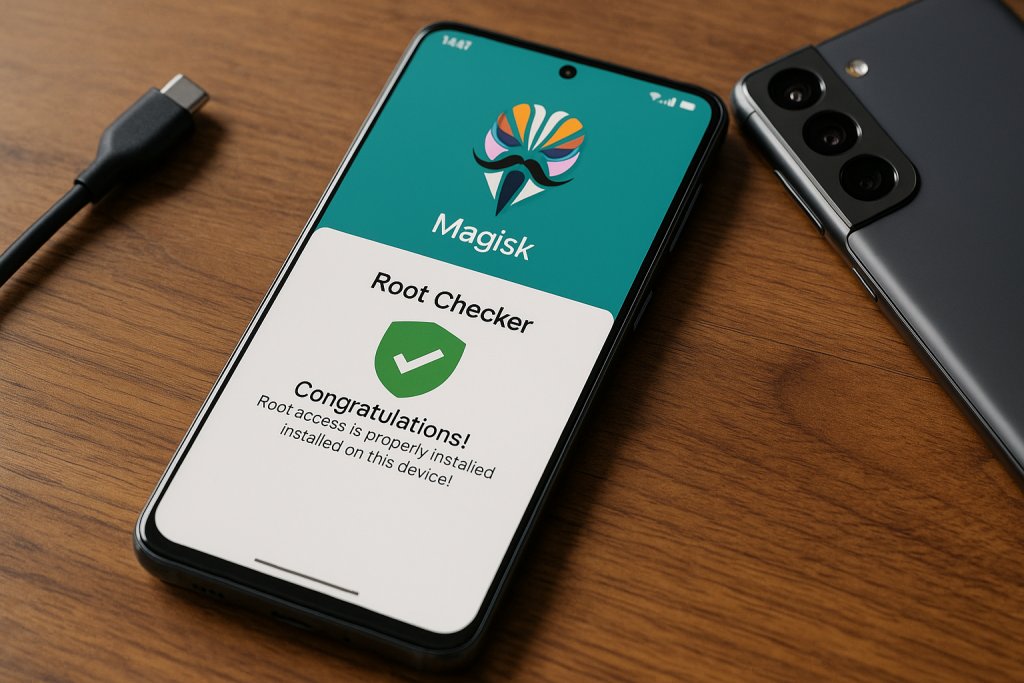
If you are searching for how to root a Samsung Galaxy S21, you probably want three things: a straight answer on whether your specific model can be rooted, a method that still works on current firmware, and clear steps that minimize your chances of bricking the phone. Rooting the S21 in 2026 is still possible on many international models, but not on most North American carrier variants. The actual process has not changed much since launch: you unlock the bootloader, patch the AP firmware with Magisk, and flash it with Odin on a Windows PC. The details and the caveats matter.
This guide focuses on doing it properly, avoiding the common pitfalls like mismatched firmware, missing the VaultKeeper step, or flashing the wrong CSC file. I will also call out the cases where you should stop and not proceed. Rooting is a one-way door on Samsung in several respects. Once you trip Knox, it stays tripped.
Check your model and what you can (and cannot) do
Root access on the Galaxy S21 series depends on the chipset and region. Samsung’s policies split sharply between Exynos-based global models and Snapdragon-based North American carrier models.
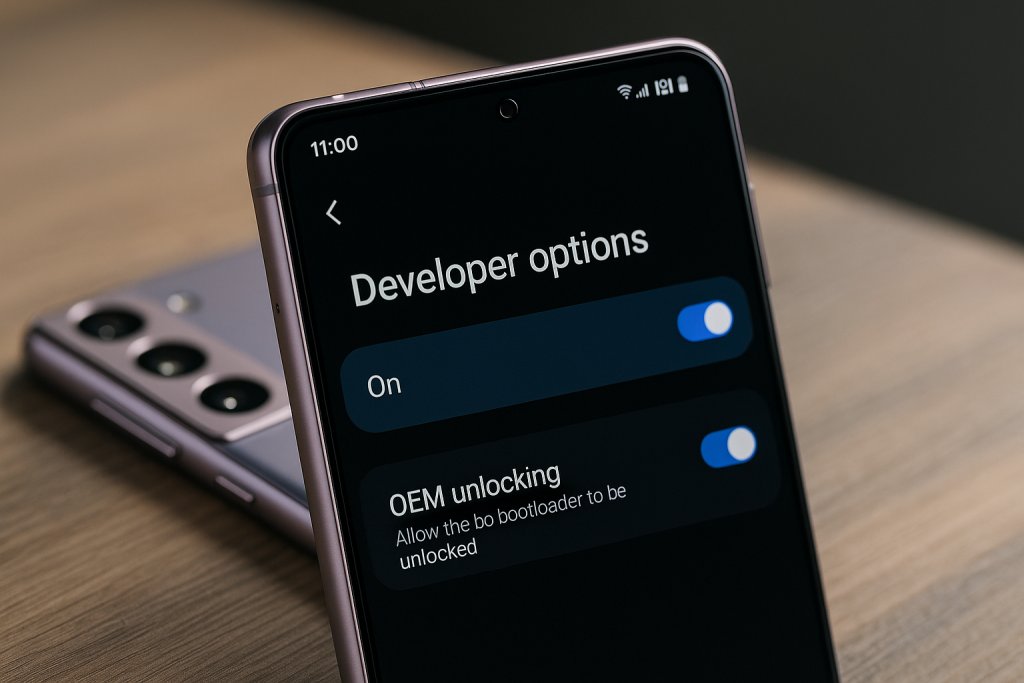
- Usually unlockable and rootable: Exynos models sold in many global markets. For the S21 family, that typically means SM-G991B (S21), SM-G996B (S21+), and SM-G998B (S21 Ultra). If your device is one of these, you should find the OEM Unlock option in Developer options.
- Often unlockable outside North America: Some Snapdragon global variants, such as SM-G9910/SM-G9960/SM-G9980 (Hong Kong/China/Taiwan), may allow bootloader unlock. Policies vary by carrier and region. Check before you do anything.
- Not unlockable in most cases: North American Snapdragon variants like SM-G991U/U1/W, SM-G996U/U1/W, SM-G998U/U1/W (USA/Canada). On these models the OEM Unlock toggle is typically not present, and the bootloader is effectively locked. There is no safe, supported method to root if the toggle never appears.
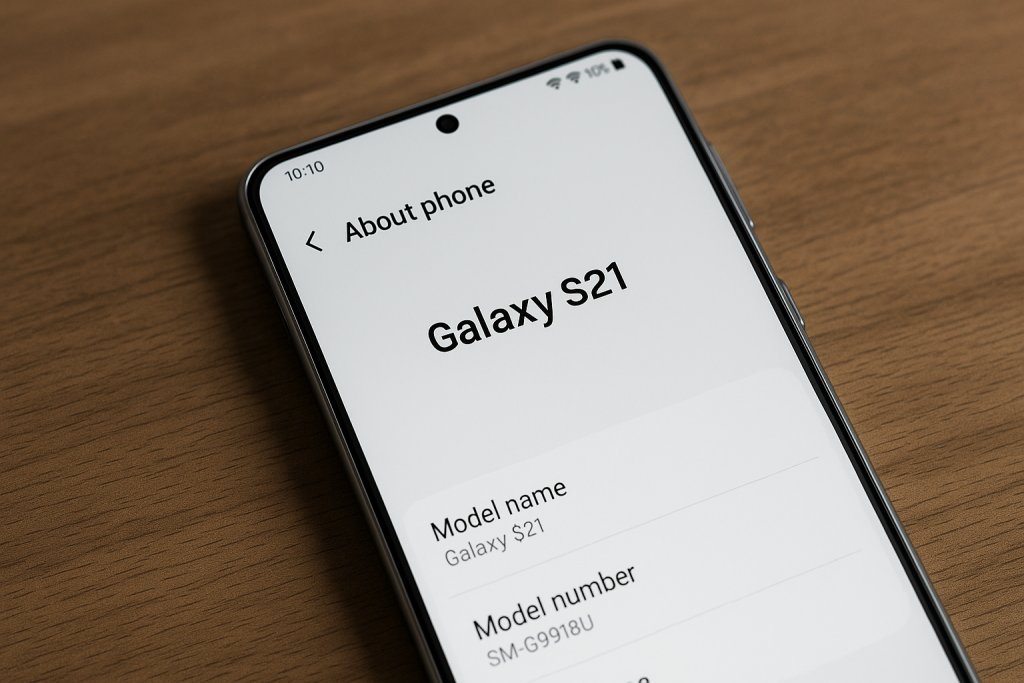
You can verify your exact model under Settings > About phone. The unlock ability is indicated by the OEM Unlock toggle in Developer options. If that toggle is missing after you connect to the internet, update your software, and sign into a Samsung account, it usually means your device is not unlockable in your region. Don’t chase random tools that claim to unlock Snapdragon carrier models; that path regularly ends in a brick or stolen credentials.
How to check quickly:
- Go to Settings > About phone > Software information.
- Tap Build number seven times to enable Developer options.
- Go back to Settings > Developer options. Look for OEM Unlock. If it is present, you can proceed. If it is missing and never appears, stop here.
What rooting does to your S21, and what you lose
Before you unlock anything, understand the trade-offs. Rooting on modern Samsung phones is not reversible in a few important ways.
- Knox is permanently tripped (eFuse 0x1). This cannot be undone. Once tripped, features that rely on Knox security no longer work, including Samsung Pay, Secure Folder, and some corporate device management features. If you use these regularly, you should not root.
- Your data will be wiped at least once. Unlocking the bootloader performs a factory reset. The first Magisk flash on Samsung also requires a wipe from recovery to boot cleanly. Back up everything.
- Some apps may refuse to run. Banking, payments, and a few streaming apps may fail checks even if you try to hide root. Magisk and community modules can sometimes pass basic checks, but results vary, and app policies change frequently.
- DRM and media. Widevine may drop to L3 on some firmware combinations after you root. That means HD playback in some streaming apps could be unavailable.
- Over-the-air updates are no longer simple. You can still update, but you will typically download full firmware for your build, patch the AP again with Magisk, then flash with Odin to keep root.
If you accept those limits and back up your data first, you can proceed safely.
What you need before you start
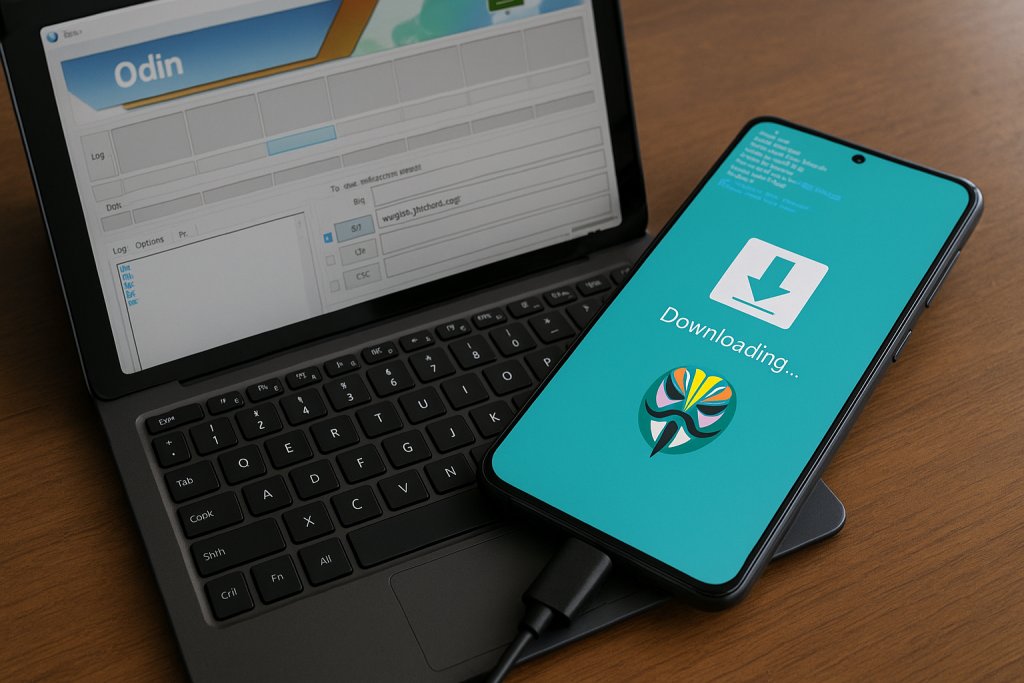
Rooting a Galaxy S21 is a PC-assisted job. Odin is Windows-only, and while open-source tools exist, they are unreliable with Samsung’s dynamic partition and vbmeta setups on modern devices. Use a Windows machine if at all possible.
- A Windows PC and the Samsung USB driver installed.
- The latest Odin 3.14.x build. Use a trusted source from the Android modding community. Avoid random rehosts that bundle adware.
- Your exact stock firmware package matching your model and region (BL/AP/CP/CSC files). Use a reputable downloader to fetch the latest build for your CSC, or use a tool like Frija or samloader to grab it directly from Samsung’s servers. Make sure the bootloader revision (often called binary version) matches your device. You cannot downgrade to a lower bootloader revision.
- The latest Magisk app APK from the official GitHub repository by topjohnwu. Install it on the phone.
- A reliable USB-C cable and at least 60 percent battery.
- Enough free space: the AP file is large, and patching it requires several extra gigabytes on both phone and PC.
Backups worth doing:
- Photos and videos to Google Photos or local storage.
- App data to Google cloud backup, plus a manual export of authenticator codes if you use 2FA (move them off the device in advance if possible).
- Samsung Smart Switch backup to a PC or an external drive if you rely on Samsung-specific data.
With files and backups in order, you can move to the actual unlock and flash.
Step 1: Unlock the bootloader on your S21
This is the point of no return for Knox. Double-check your backups and that your model can be unlocked.
- Enable Developer options as described earlier, then toggle on OEM Unlock. Read any warnings and confirm.
- Power off the phone completely.
- Enter Download Mode: hold Volume Up and Volume Down together, then plug the phone into your PC via USB while holding both buttons. Release when you see the download screen.
- On the download screen, long-press Volume Up to unlock the bootloader. You will see a confirmation that unlocking will wipe data. Confirm to proceed.
- The phone will reset and reboot. This first boot after unlock may take a bit longer.
- Complete the minimal setup. Connect to Wi-Fi or mobile data. Skip restoring backups for now. Go back into Developer options and confirm that OEM Unlock is present and shows as enabled or grayed out with the bootloader already unlocked. This step lets Samsung’s VaultKeeper mark the device as unlocked so flashing is allowed.
If you do not see OEM Unlock after the reset, connect to the internet and check again. Some devices take a first boot with connectivity to register the unlock state properly. If it still does not appear and you never had it, your model is likely non-unlockable.
Step 2: Prepare a Magisk-patched AP firmware
Samsung’s modern devices do not use a separate boot image for Magisk installation. Instead, Magisk patches the big AP firmware package and injects itself so that it initializes early during boot. That is why you need your exact firmware.
- On your PC, extract the stock firmware you downloaded. You should have BL_xxx.tar.md5, AP_xxx.tar.md5, CP_xxx.tar.md5, CSC_xxx.tar.md5 and/or HOME_CSC_xxx.tar.md5.
- Copy the AP_xxx.tar.md5 file to your phone’s internal storage. It will be several gigabytes. Use a cable; Wi-Fi transfer is usually too slow.
- On the phone, install and open the Magisk app. Tap Install > Select and Patch a File. Choose the AP_xxx.tar.md5 you just copied.
- Magisk will process the file and produce a patched TAR file in your Downloads folder, typically named magisk_patched-XXXXX.tar. This can take a while. Do not let the screen turn off during the process if your device is set to aggressively sleep apps.
- Copy the patched file back to your PC. Keep the original AP file in case you need to go back.
That patched AP tar is the only part of the firmware that changes for root. BL and CP remain stock. For CSC, you will generally use HOME_CSC to retain data when updating. For the first root flash after unlocking, you will still wipe data from recovery, so using HOME_CSC is usually fine and avoids extra re-provisioning steps later.
Step 3: Flash the patched AP with Odin
Now you will use Odin to flash four slots: BL, AP (patched), CP, and HOME_CSC. One setting matters here: turn off Auto Reboot in Odin so you can handle the first boot sequence properly.
- Reboot the phone to Download Mode again: power off, then hold Volume Up + Volume Down while connecting USB to the PC.
- Launch Odin as Administrator on your PC. In the Options tab, uncheck Auto Reboot. Keep F. Reset Time checked.
- Load the files:
- BL: select the BL_xxx.tar.md5 from your stock firmware.
- AP: select the magisk_patched-XXXXX.tar file.
- CP: select the CP_xxx.tar.md5.
- CSC: use HOME_CSC_xxx.tar.md5 if you want to keep data. If you prefer a full wipe now, you can use CSC_xxx.tar.md5, but you will be wiping in recovery anyway for the first boot after Magisk.
- Click Start. The flash process will take a few minutes. Do not disconnect the phone.
- When Odin shows PASS, you must exit Download Mode and boot straight into recovery. Hold Volume Down + Power together until the screen turns off, then immediately switch to holding Volume Up + Power to boot into stock recovery. Timing is important. If you miss it and the device tries to boot normally, force it off and try again.
- In recovery, use the volume keys to navigate to Wipe data/factory reset and confirm. This wipe is required for Samsung devices after the first Magisk flash to avoid boot loops.
- After the wipe completes, select Reboot system now.
The first boot can take longer than usual. Be patient. If the phone reboots a few times, that can be normal during the initial post-flash phase. If it loops endlessly, see the troubleshooting section below.
First boot, finish Magisk setup, and verify root
Once you land on the setup screen, sign in and restore your data as needed, or keep it minimal for the moment. Install the Magisk app again if it is not visible. On some builds, the app is not auto-installed even though Magisk is present in the boot flow.
Open Magisk. It may prompt to finalize installation and request a reboot. Let it complete. After that, you should see Magisk reporting Installed along with a version number.
To verify root:
- Within Magisk, check that it shows installed with the green check. You can also install a simple root checker from the Play Store to confirm that apps can request superuser access.
- Grant or deny requests thoughtfully. Start with a known-good app like a file manager or a terminal emulator. If you are new to root, avoid granting access to every app that asks for it.
At this point, your S21 is rooted. Before you dive into modules and tweaks, spend a day using the phone normally to ensure stability on your firmware version.
Troubleshooting common problems
If something goes sideways, do not panic. Most issues trace back to mismatched firmware, skipping the required wipe, or not following the boot sequence into recovery after flashing.
- Boot loop at the Samsung logo or endless reboots: The most common cause is skipping the factory reset from recovery after the first Magisk flash. Boot back to recovery (Volume Up + Power) and wipe data/factory reset. If that does not help, confirm you used the correct patched AP for your exact build and that BL/CP/CSC matched the same firmware version.
- Odin fails with error or stuck on setup connection: Try a different USB port and cable. Close Kies or Smart Switch if running in the background. Reinstall Samsung USB drivers. Use another 3.14.x Odin build if necessary.
- No OEM Unlock option even after updates and internet: Your model likely cannot be unlocked in your region. On older devices there was a 7-day wait trick, but on the S21 series it is not reliably applicable. If the toggle never appears, stop pursuing it.
- Magisk is installed but apps say no root: Open Magisk and check if it asks to complete the installation. Also ensure you did not install the app only without the patched AP. If necessary, patch AP again and reflash following the steps.
- Banking or payment apps stop working: This is expected on many apps after tripping Knox or failing Play Integrity checks. You can try enabling Zygisk in Magisk and using denylist features, but results vary across apps and regions. Be prepared for some apps to never run on a rooted device.
- DRM downgraded to L3 with no HD playback: This sometimes happens after root depending on firmware and app. There is no guaranteed fix. If HD streaming is essential, consider staying stock.
- Random reboots or instability after heavy Magisk module use: Remove modules one by one. If you cannot boot, use Magisk’s Safe Mode (hold Volume Down button while booting to disable modules) or remove the problematic module via adb in recovery.
How to update a rooted Galaxy S21 and keep root
There are two general approaches to updates. On Samsung, the cleanest and most reliable approach is to flash full firmware with a newly patched AP. OTA updates through Settings often fail or unroot the device if you apply them directly.
Recommended method (full firmware flash with patched AP):
- Download the new firmware for your exact model and CSC. Make sure the bootloader revision is the same or higher than your current one. You cannot go to a lower revision.
- Extract the package and patch the new AP tar with the latest Magisk app on your phone, just as you did initially.
- Reboot to Download Mode and open Odin. Load BL (new), AP (new patched), CP (new), and HOME_CSC (new) to retain data. Leave Auto Reboot unchecked, then click Start.
- When Odin shows PASS, exit Download Mode and let the device boot to system. For incremental updates with the same major base, you usually do not need to wipe data again. If you hit a boot loop, boot to recovery and wipe cache first, then data as a last resort.
- Open Magisk. If it prompts to finish installation, allow it and reboot.
Alternative method (OTA-in-place with Magisk): On some builds, you can follow Magisk’s documented OTA method where you restore stock images in Magisk, take the OTA, then let Magisk install to the inactive slot. Samsung devices with Odin-based updates and single-slot layouts often complicate this. If you are not already comfortable with Magisk’s OTA flow, stick with the full firmware method to avoid half-applied updates and soft bricks.
How to unroot and go back to stock
If you need to return to stock for resale or troubleshooting, the process is straightforward. This does not restore Knox to 0x0. Features tied to Knox remain disabled permanently.
- Download the latest stock firmware for your model and CSC.
- Extract the package. In Odin, load BL, AP (stock), CP, and CSC (use CSC, not HOME_CSC, to force a full wipe).
- Uncheck Auto Reboot. Click Start and wait for PASS.
- Exit Download Mode and boot to recovery. Wipe data/factory reset if the phone does not do it automatically. Reboot to system.
- To relock the bootloader, reboot to Download Mode again and choose the option to lock the bootloader (this appears on the download warning screen on many devices as a long-press Volume Up prompt in reverse). Confirm. The device will wipe again and reboot.
After relocking, the phone runs stock software and receives normal OTAs for future updates. Knox remains tripped, so Secure Folder and Samsung Pay do not return.
Practical tips that save time and headaches
A few small habits make rooted life easier on the S21.
- Always archive the exact firmware you are running. If your phone becomes unstable, you can reflash quickly without hunting for a specific build.
- Label your patched AP files with the build number and date. It is easy to mix them up after a couple of updates.
- Keep Odin, Magisk, and Samsung USB drivers up to date. New Android builds sometimes require a newer Magisk for reliable injection.
- Mind the bootloader revision. Samsung increments the revision with certain updates. Once you cross that line, you cannot go back to earlier builds. Flashing a lower revision will fail in Odin or soft brick the phone.
- Be conservative with Magisk modules. Install one at a time, reboot, and test. If something breaks, you will know what did it.
- Use a root-capable backup tool for apps if you rely on stateful data. Swift Backup is a common choice among root users. Without TWRP, you cannot take a traditional nandroid backup.
Frequently asked questions
Does this guide apply to the S21+, and S21 Ultra? Yes. The process is the same across the S21 family. The key differences are only in model numbers and regional policies.
Will this still work on Android 14/One UI 6.x? Yes, the Magisk-patched AP method works through modern One UI builds as long as you use the latest Magisk and the firmware that matches your device. Details like menu labels and button combinations may vary slightly, but the flow is unchanged.
Do I need to flash vbmeta or disable verification? Not on Samsung with Magisk. The patched AP handles what is needed for root. Flash only BL, AP (patched), CP, and the appropriate CSC through Odin as described.
Can I do this on macOS or Linux? Heimdall exists but is not dependable for the S21 series. If you want the least drama, borrow a Windows PC for Odin.
Why is my OEM Unlock missing? If your model is a US carrier or Canadian Snapdragon variant, the bootloader is typically not unlockable. If you own a global Exynos model and the toggle is still missing, connect to Wi-Fi, sign into a Samsung account, check for updates, and look again. If it never appears, it is probably blocked by region or carrier.
Can I keep using Secure Folder or Samsung Pay after root? No. Knox eFuse is tripped the moment you unlock the bootloader, and it does not revert. Secure Folder, Samsung Pay, and certain enterprise features will no longer work even if you relock and return to stock.
Will I still pass SafetyNet or Play Integrity? Magisk provides features to hide root from some checks, but Google has been tightening these systems over time. Success varies by device, firmware, and app. Plan for some apps to refuse to run on a rooted device.
Is TWRP available for the S21? There have been community builds for some variants over time, but support has been limited and changes across Android versions. Magisk without TWRP remains the most stable and broadly used setup for the S21 series. If you find an actively maintained recovery for your exact model and firmware, follow its developer’s instructions closely.
What about eSIM and Samsung Health? eSIM functionality generally survives bootloader unlock and root. Samsung Health may restrict features on rooted devices, and watch integration for certain wellness features can be impacted. If you rely on these, test early and be ready for limitations.
If you get stuck, how to recover safely
If the phone will not boot after several attempts, do not keep cycling it. Instead, go back to a known-good baseline:
- Enter Download Mode and flash full stock firmware with Odin using BL, AP (stock), CP, and CSC (not HOME_CSC) to force a wipe.
- Boot to recovery and wipe data if needed. Confirm you can reach the setup screen.
- Once stable, repeat the patching process carefully: verify the firmware build, repatch AP with the latest Magisk, and flash again with Auto Reboot off, then wipe in recovery before first boot.
As long as you can reach Download Mode, you can usually recover the device. True hard bricks on the S21 are rare unless a power loss or cable disconnect occurs during a critical flash.
Why people still root the S21 in 2026
Even with the trade-offs, root has its place. People still want granular control over their devices. Common reasons include:
- System-level automation and scripting that go beyond what apps can do without root.
- Ad and telemetry control with tools that require superuser access.
- Advanced backup and restore workflows, especially for power users who switch ROMs or devices frequently.
- Kernel-level tuning and performance tweaks.
- Curiosity and learning. For many, the S21 is a well-understood playground with strong community documentation.
Just go in with realistic expectations about payments, streaming, and OTAs. Rooting does not make a phone magically better; it makes it more configurable at the cost of convenience and a few vendor features.
The short version, if you just need the flow
If you are comfortable and simply needed a refresher:
- Confirm your model can be unlocked. Find OEM Unlock and turn it on.
- Unlock in Download Mode. Phone resets.
- Download your exact firmware. Patch the AP tar with the latest Magisk app.
- In Odin, flash BL (stock), AP (patched), CP (stock), HOME_CSC (stock). Turn off Auto Reboot.
- After PASS, boot directly to recovery. Wipe data/factory reset. Reboot.
- Finish Magisk setup and verify root.
- For updates, repeat the patch-and-flash process with the new firmware.
Take your time and match versions. That is 90 percent of avoiding problems on Samsung.
Final thoughts
Rooting a Galaxy S21 in 2026 is still practical on the right models. The process is well-trodden: unlock, patch AP with Magisk, flash with Odin, wipe, and boot. The friction comes from Samsung’s regional policies, Knox, and the discipline required to keep firmware and Magisk versions aligned through updates.
If you depend on Samsung Pay, Secure Folder, or guaranteed compatibility with banking and streaming apps, stay stock. If you prize control and do not mind rolling your own updates, a rooted S21 remains a capable, modern device with a mature modding ecosystem. Respect the steps, keep backups, and avoid shortcuts. You will spend more time using the phone and less time fixing it.